Wizard – Container Registries
In the previous multi-step Setup Wizard, ReadyStackGo automatically detected which container registries your selected stacks required and verified access to each registry.
Overview
Section titled “Overview”After selecting Stack Sources in the previous step, ReadyStackGo analyzes all image references from the available stacks and groups them by registry and namespace. The wizard then displays a two-column view:
| Column | Description |
|---|---|
| Action Required | Registries that have not been verified yet — enter credentials or check access here |
| Verified | Registries with confirmed access — either public or with valid credentials |
Step by Step: Configuring Registries
Section titled “Step by Step: Configuring Registries”Step 1: Two-Column Layout
Section titled “Step 1: Two-Column Layout”After automatic detection, you see all required registries in two columns. Public registries (e.g., Docker Hub library/*) are automatically checked and moved to the “Verified” column on success.
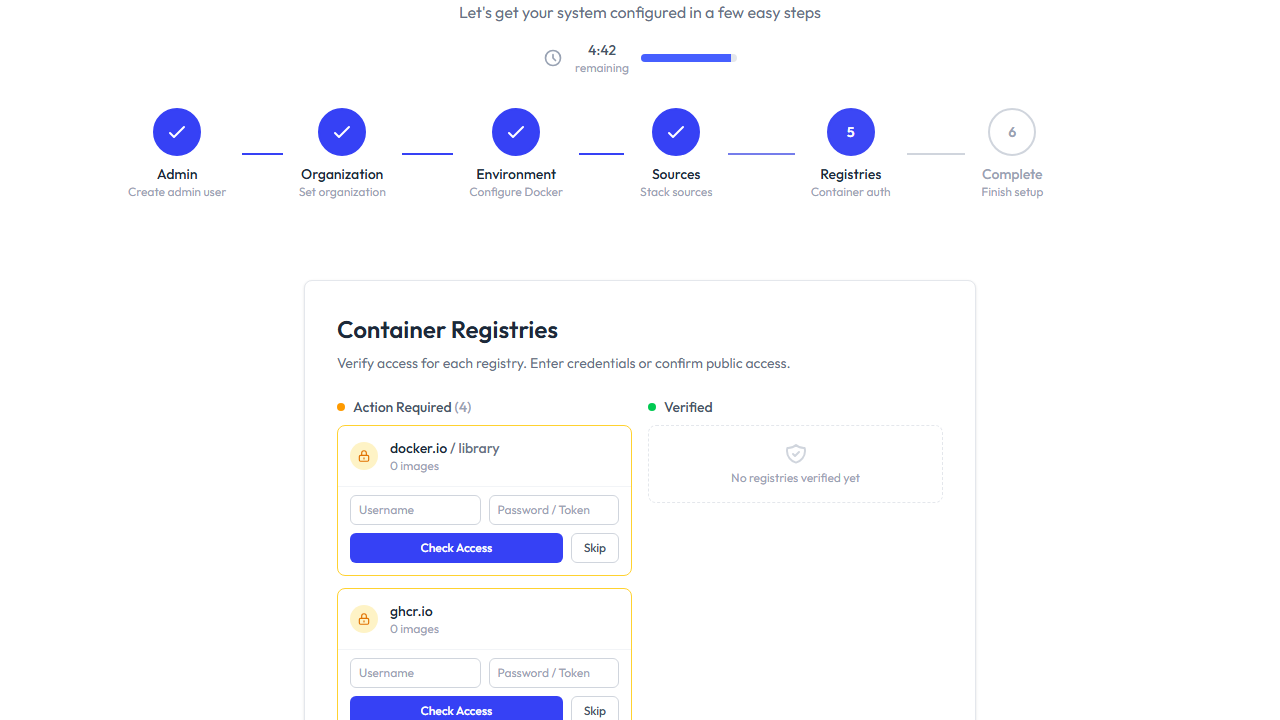
Each card in the “Action Required” column shows:
- Registry name (host and namespace)
- Image count from this registry
- Credential fields (Username and Password/Token)
- Check Access button to verify access
- Skip button to skip configuration
Step 2: Verify Access
Section titled “Step 2: Verify Access”For public registries, click Check Access directly — without entering credentials. ReadyStackGo checks via the Docker Registry v2 API whether anonymous access is possible.
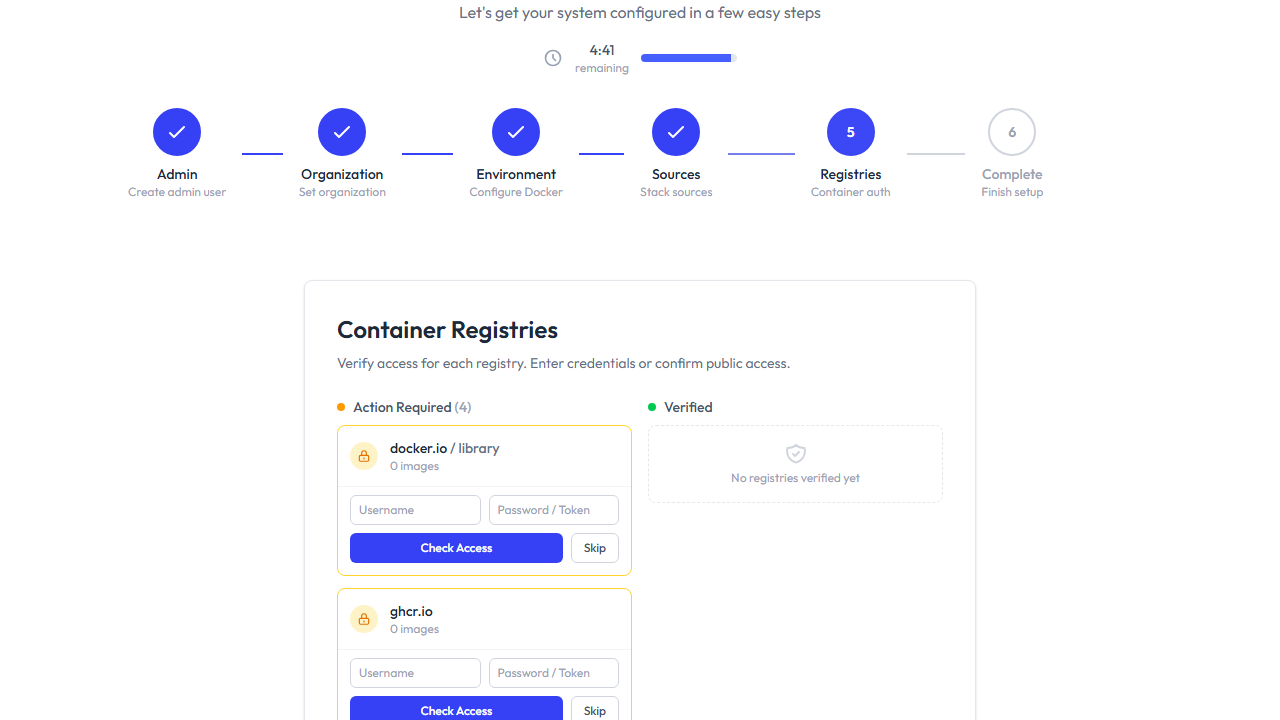
For private registries:
- Enter Username and Password / Token
- Click Check Access
- On successful authentication, the registry moves to the “Verified” column
Step 3: Skip a Registry
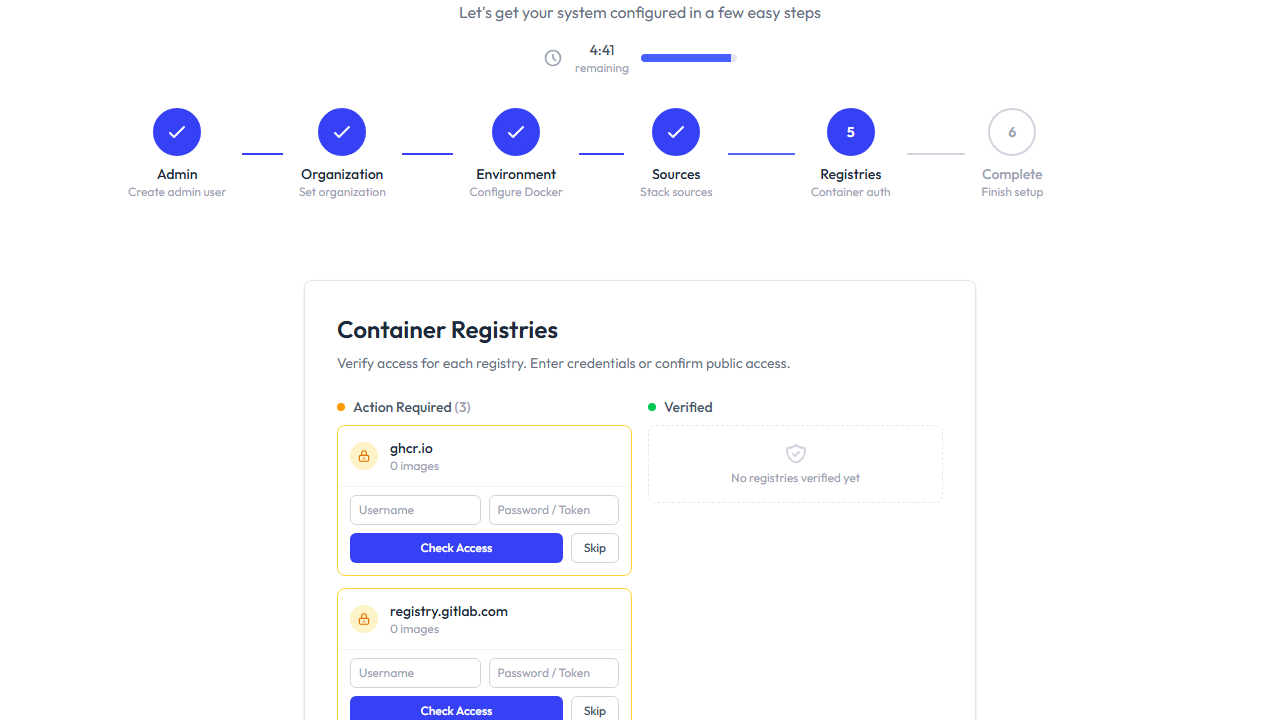
Section titled “Step 3: Skip a Registry”If you don’t want to configure a registry right away, click Skip. The registry moves to the “Skipped” section with an Undo button.
Step 4: Complete Setup
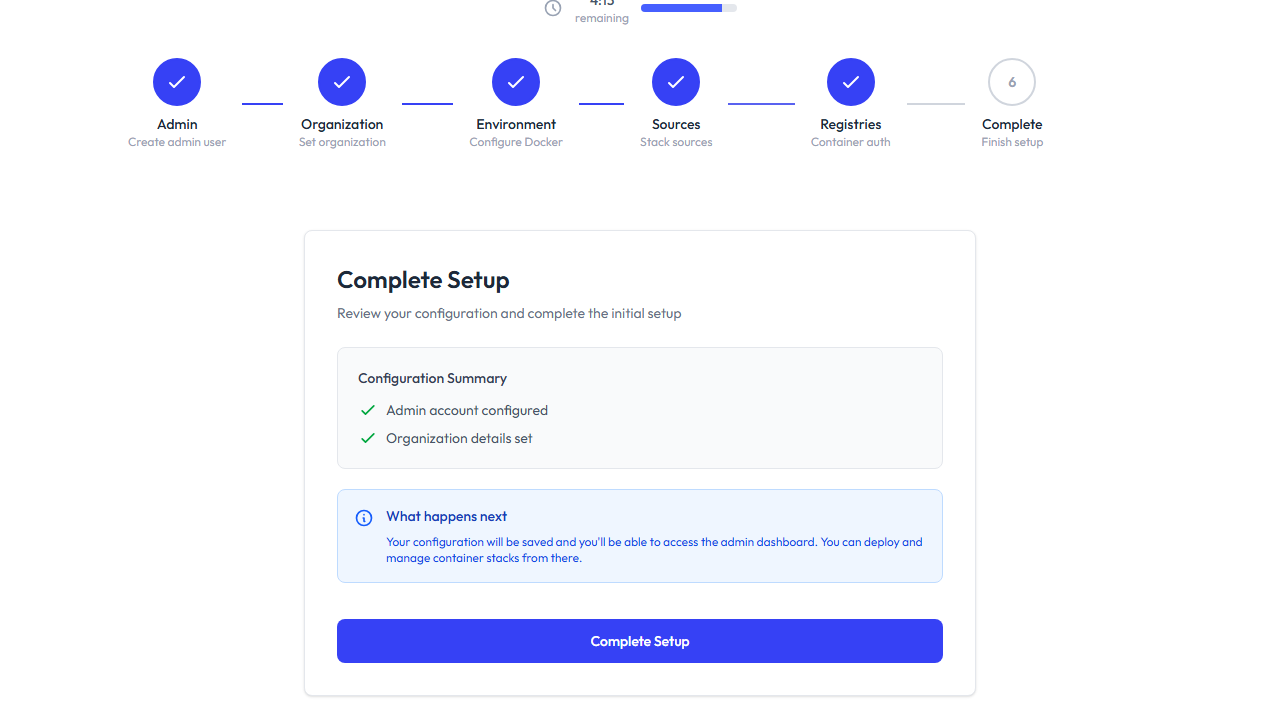
Section titled “Step 4: Complete Setup”Click Continue to proceed to the final wizard step. Alternatively, use Skip for now to skip the entire registries step.
Automatic Detection
Section titled “Automatic Detection”ReadyStackGo detects registries from image references in stack definitions:
| Image Reference | Detected Registry | Namespace |
|---|---|---|
nginx:latest | docker.io | library |
ghcr.io/myorg/myapp:v1 | ghcr.io | myorg |
registry.gitlab.com/team/project:latest | registry.gitlab.com | team |
myacr.azurecr.io/services/api:2.0 | myacr.azurecr.io | services |
Heuristics
Section titled “Heuristics”- Images without a host (e.g.,
nginx) are automatically mapped todocker.io/library/ docker.io/library/*is marked as “likely public”mcr.microsoft.comis also recognized as public- All other registries are initially classified as “Action Required”
Access Verification (v2 API Flow)
Section titled “Access Verification (v2 API Flow)”The verification follows the Docker Registry v2 authentication protocol:
- GET /v2/ — if 200 → registry is fully public
- 401 with Bearer Challenge → start token flow
- Request token with
scope=repository:{namespace}/{repo}:pull - List tags with the obtained token
- If tag listing succeeds → public / authenticated confirmed
Related Links
Section titled “Related Links”- Registry Management — Manage registries via the Settings page
- Stack Sources — Configure Stack Sources
- Stack Deployment — Deploy stacks