Stack Sources
ReadyStackGo discovers deployable stacks from configurable Stack Sources. Sources can be local directories, Git repositories, or curated entries from the Source Catalog. They can be imported, exported, and configured during initial setup via the Onboarding.
Overview
Section titled “Overview”| Feature | Description |
|---|---|
| Source Catalog | Add curated, preconfigured Git sources with one click |
| Import / Export | Back up source configurations as JSON and transfer them to other instances |
| Onboarding Integration | Select recommended sources during initial setup |
| Manual Sources | Add local directories or any Git repository |
Step by Step: Managing Sources
Section titled “Step by Step: Managing Sources”Step 1: Open Settings
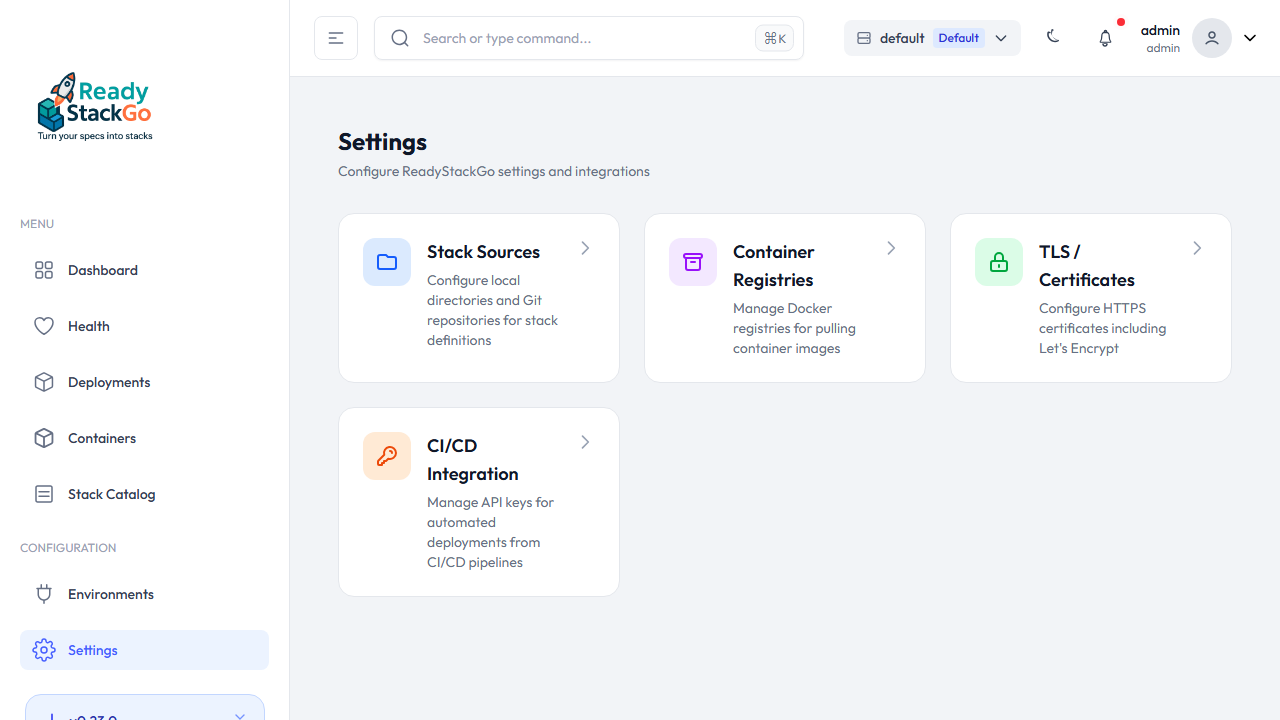
Section titled “Step 1: Open Settings”Navigate to Settings in the main menu. You’ll find the Stack Sources card.
Step 2: Stack Sources Overview
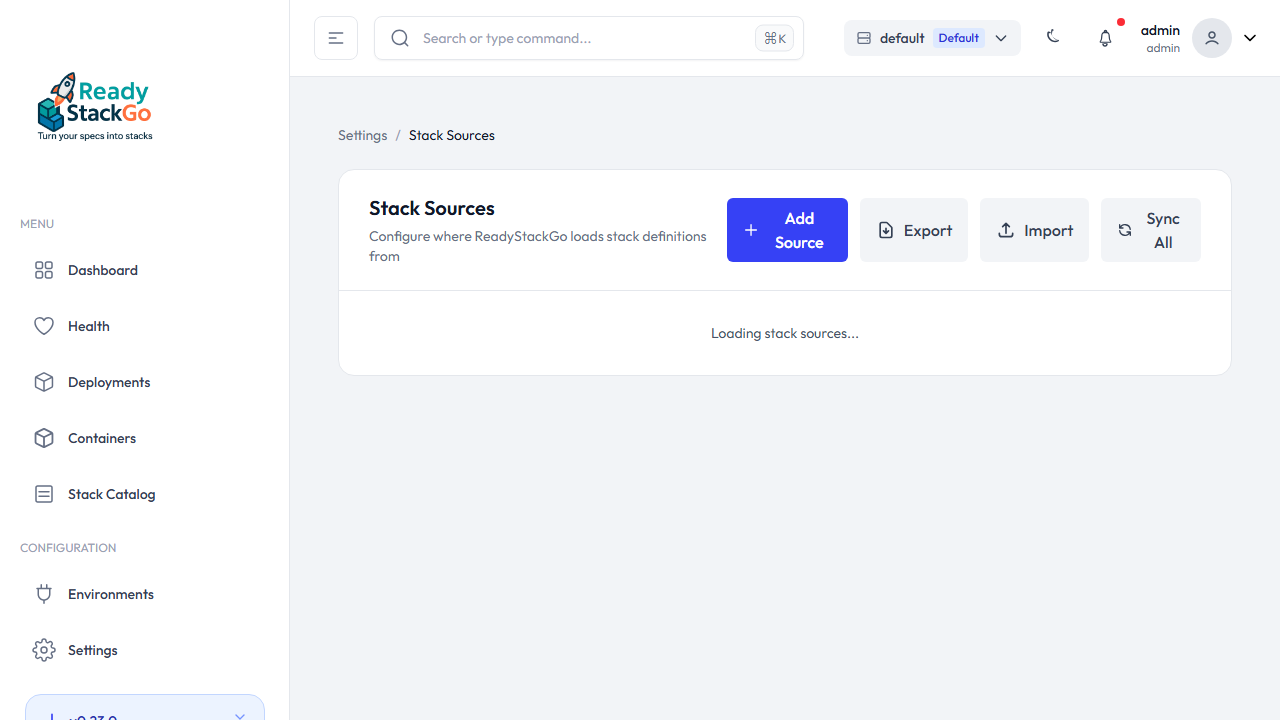
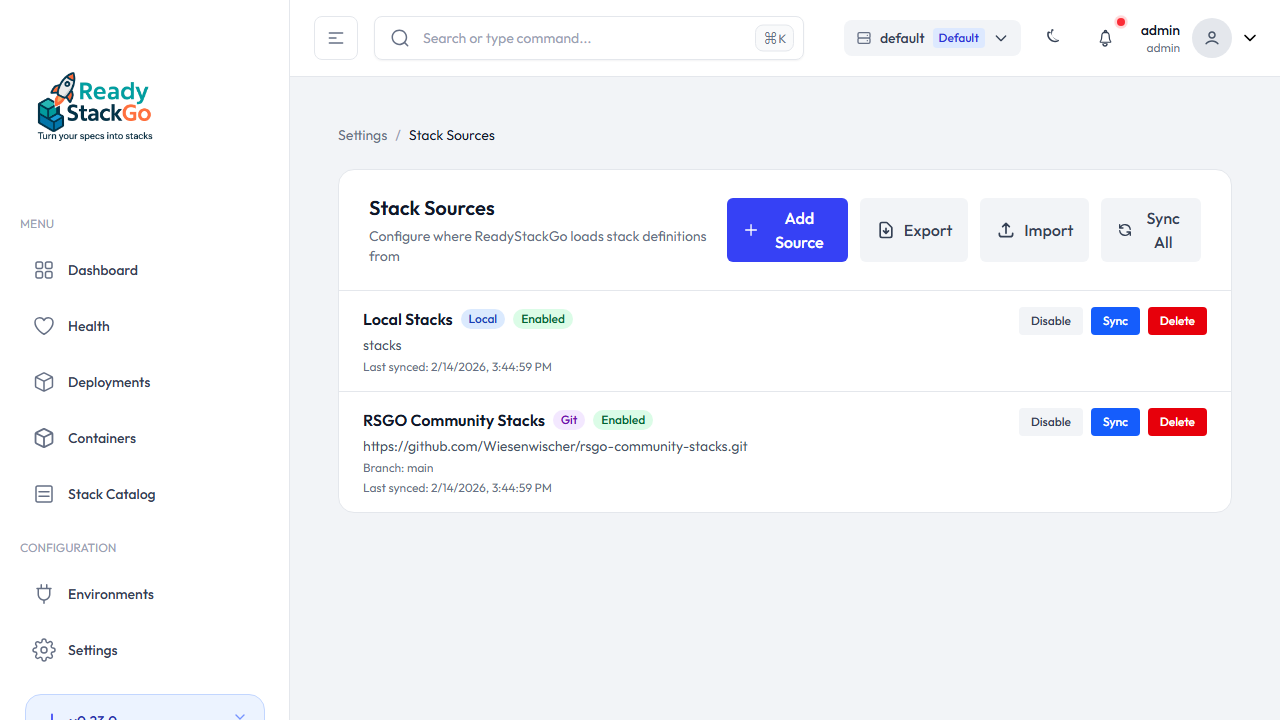
Section titled “Step 2: Stack Sources Overview”Click on Stack Sources. You’ll see the list of all configured sources with action buttons:
- Add Source – Add a new source
- Export – Export all sources as JSON
- Import – Import sources from a JSON file
- Sync All – Synchronize all active sources
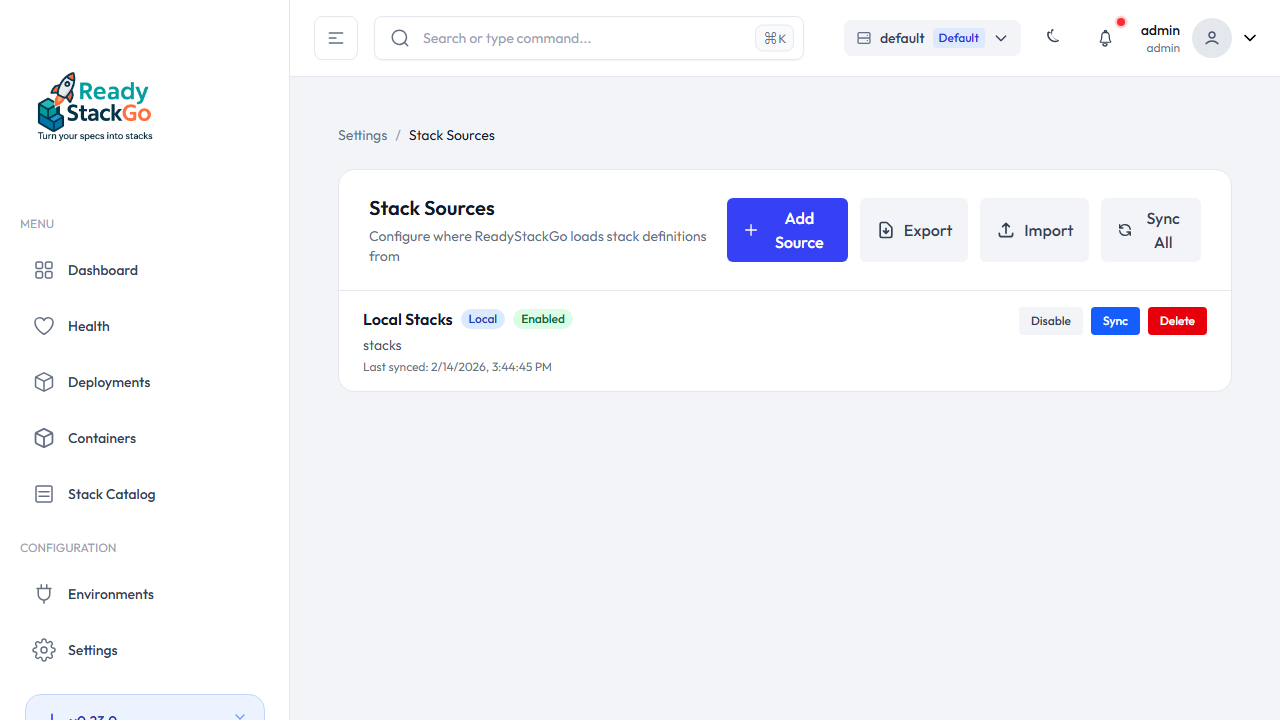
Each source shows its type (Git / Local), status (Enabled / Disabled), and offers the actions Sync, Disable/Enable, and Delete.
Adding a Source from the Catalog
Section titled “Adding a Source from the Catalog”The Source Catalog contains curated Git repositories that can be added with a single click.
Step 1: Choose Source Type
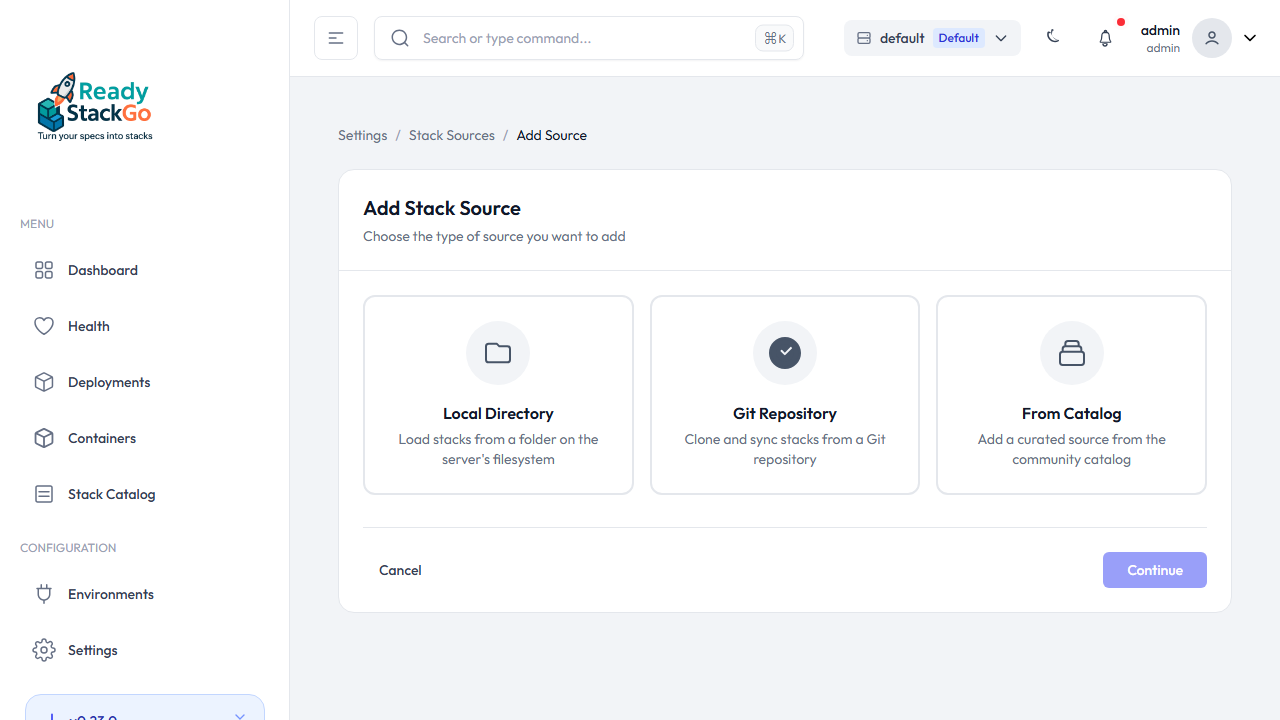
Section titled “Step 1: Choose Source Type”Click Add Source. You’ll see three options:
- Local Directory – A local directory on the server
- Git Repository – Any Git repository (URL + branch)
- From Catalog – A preconfigured source from the catalog
Select From Catalog and click Continue.
Step 2: Browse the Catalog
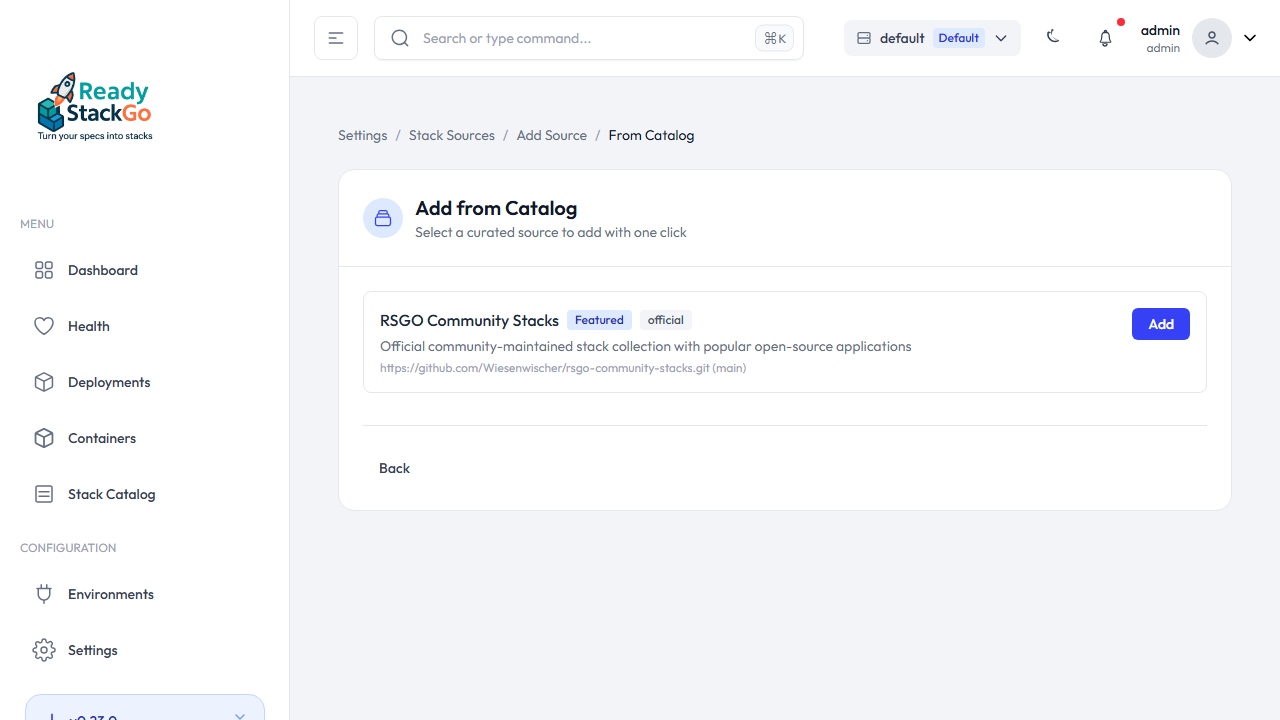
Section titled “Step 2: Browse the Catalog”You’ll see the available catalog entries with name, description, and the number of included stacks. Sources that have already been added are marked with an Already added badge.
Click Add next to the desired source.
Step 3: Source Added
Section titled “Step 3: Source Added”After adding, you’ll be redirected to the sources overview. The new source appears in the list and is automatically synchronized.
Import and Export
Section titled “Import and Export”Stack source configurations can be exported and imported as JSON files. This is useful for transferring sources between instances or as a backup.
Export
Section titled “Export”Click Export in the sources overview. A JSON file named rsgo-sources-YYYY-MM-DD.json will be downloaded.
Import
Section titled “Import”Click Import and select a previously exported JSON file. The import logic:
- New sources are created
- Duplicates (same Git URL or same path) are skipped
- Unknown types are ignored
- Git sources without a branch default to
main - Local sources without a file pattern default to
*.yml;*.yaml
Onboarding Integration
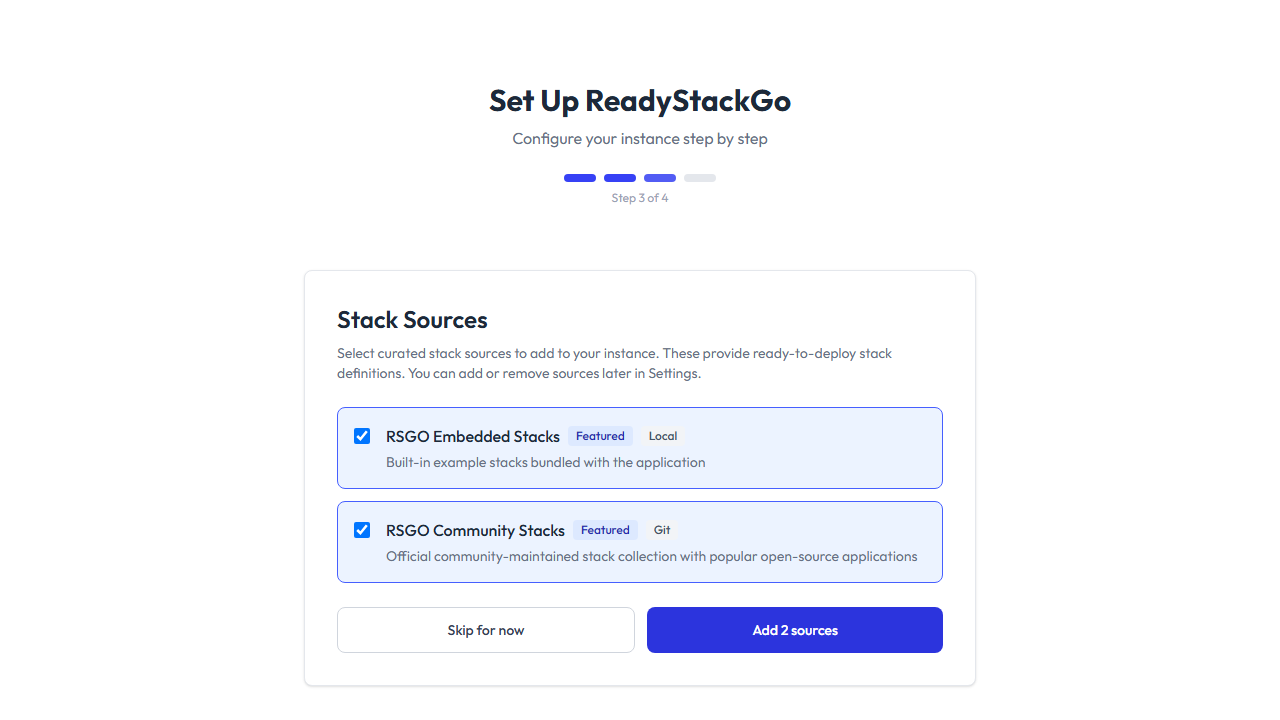
Section titled “Onboarding Integration”During the initial setup of ReadyStackGo, the Onboarding (step 3) offers stack source configuration. The onboarding displays the available catalog entries with checkboxes:
- Featured sources are pre-selected
- You can select or deselect any number of sources
- Click Add N source(s) to add the selected sources
- Click Skip for now to skip this step
Manual Sources
Section titled “Manual Sources”In addition to the catalog, you can manually add sources:
Local Directory
Section titled “Local Directory”A directory on the server containing stack manifest files.
| Field | Description |
|---|---|
| Name | Display name of the source |
| Path | Absolute path to the directory (e.g., /opt/stacks) |
| File Pattern | Glob pattern for manifest files (default: *.yml;*.yaml) |
Git Repository
Section titled “Git Repository”A Git repository containing stack manifest files.
| Field | Description |
|---|---|
| Name | Display name of the source |
| Git URL | Repository URL (e.g., https://github.com/org/stacks.git) |
| Branch | Branch name (default: main) |
| SSL Verify | SSL certificate verification (default: enabled) |
Error Handling
Section titled “Error Handling”| Situation | Behavior |
|---|---|
| Git source without URL | Source is skipped during import |
| Local source without path | Source is skipped during import |
| Duplicate detected | Source is skipped (no error) |
| Unknown source type | Source is skipped |
| Sync failed | Error message in the sources overview, other sources continue to sync |